How to Highlight Webpage Elements for Clean Screenshots
You need a screenshot of one button on a page with 47 other things on it. So you screenshot the whole page, open an image editor, crop, maybe draw a red box around the thing, and hope your colleague understands what you’re pointing at.
Sound familiar? You’re not alone. Whether it’s for a bug report, documentation, a Slack message, or a client presentation, getting a clean screenshot of a specific element is one of those tasks that feels like it should be simple — but never quite is.
Why full-page screenshots fall short
The problem isn’t taking the screenshot. Every OS has a shortcut for that. The problem is focus. A full-page screenshot shows everything, which means it highlights nothing. Your viewer has to scan the entire image to find what you’re actually referring to.
This leads to follow-up messages (“no, the button in the top right”), wasted time, and — in the case of bug reports — delayed fixes because the developer couldn’t tell what was wrong.
The goal is simple: show one thing clearly, with enough context to understand where it lives on the page.
Here are four ways to get there, from manual to near-instant.
Method 1: Screenshot and crop manually
The most common approach. Take a full screenshot with your OS tool (Cmd+Shift+4 on macOS, Win+Shift+S on Windows), then crop it down in Preview, Paint, or whatever’s handy.
Steps:
- Take a full or region screenshot
- Open the image in an editor
- Crop to the area you need
- Optionally draw an arrow or box to highlight the element
- Save and share
Pros: No tools to install. Works anywhere.
Cons: Slow. You lose page context when you crop too tight. Adding annotations (arrows, boxes) takes extra effort and usually looks rough. If you need to re-capture after a page change, you start from scratch.
Best for: One-off screenshots where speed doesn’t matter.
Method 2: Use browser DevTools to screenshot a single node
Chrome and Firefox DevTools have a hidden gem: you can screenshot a single DOM element directly.
Steps (Chrome):
- Right-click the element and select Inspect
- In the Elements panel, right-click the highlighted node
- Select Capture node screenshot
- The image saves to your downloads folder
Pros: Pixel-perfect capture of exactly one element. No cropping needed.
Cons: You get the element with zero context — no surrounding page to show where it lives. Doesn’t work well for elements that rely on parent styling. Requires opening DevTools, which breaks your flow if you’re not a developer.
Best for: Developers who need an isolated element image and don’t need page context.
Method 3: Paste into Figma and annotate
A popular workflow among design-adjacent teams: screenshot the page, paste into Figma, then use shapes and annotations to highlight what matters.
Steps:
- Take a full-page screenshot
- Paste into a Figma file
- Draw a rectangle or overlay to dim/highlight areas
- Add text labels or arrows
- Export the frame as PNG
Pros: Beautiful results. Full control over styling. Great for polished documentation or presentations.
Cons: Requires Figma (and knowing how to use it). The workflow takes 2-5 minutes per screenshot — longer if you want it to look consistent. Overkill for a quick Slack message or bug report. The screenshot becomes stale the moment the page changes.
Best for: Polished documentation or presentations where visual quality matters more than speed.
Method 4: Use a browser extension that highlights elements in place
This is the approach Spotlight takes. Instead of capturing the full page and editing after the fact, you highlight elements directly on the live page before taking the screenshot.
How it works:
- Click the Spotlight icon in your browser toolbar
- Hover over any element — it gets detected automatically
- Click to highlight it (the rest of the page dims)
- Take your screenshot — the result is already focused
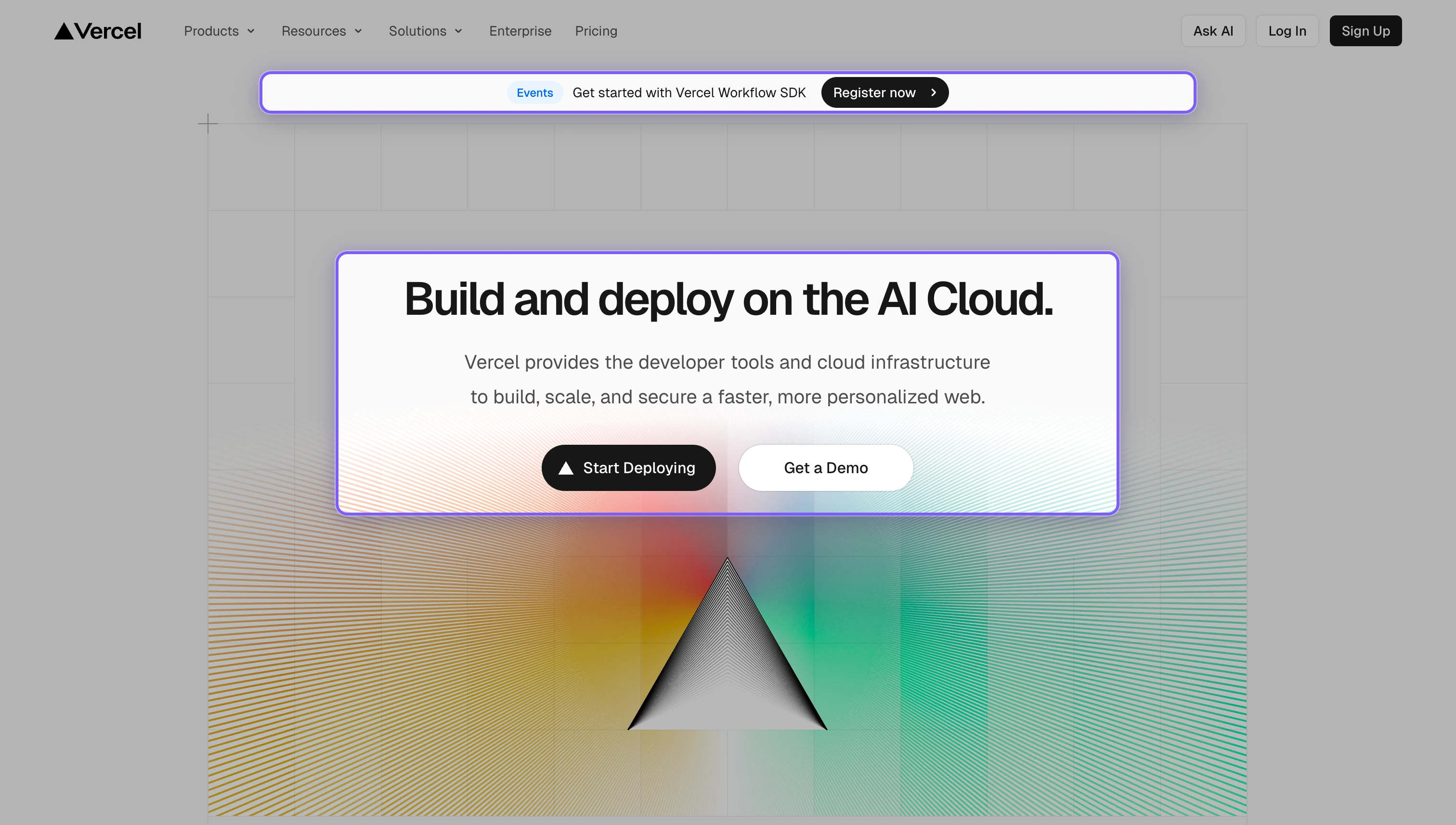
The key difference is that the page context stays intact. Your viewer can see exactly where the element lives on the page, but their eye is drawn straight to the highlighted part because everything else is dimmed.
Pros: Fast — highlight and screenshot in under 10 seconds. Context is preserved. Consistent visual style every time. Works on any page without leaving the browser.
Cons: Requires installing an extension. Less annotation flexibility than Figma (no freehand arrows or text boxes — though annotation labels are on the roadmap).
Best for: Frequent screenshots for bug reports, documentation, Slack messages, and async communication. Especially useful when speed and consistency matter more than pixel-perfect design control.
Which method should you use?
It depends on what you’re optimising for:
| Method | Speed | Context | Polish | Setup |
|---|---|---|---|---|
| Manual crop | Slow | Low (lost in crop) | Low | None |
| DevTools node capture | Medium | None (isolated element) | Medium | None (needs DevTools) |
| Figma annotation | Slow | High | High | Figma account |
| Browser extension (Spotlight) | Fast | High | Medium-High | Extension install |
For quick, daily screenshots — bug reports, docs, Slack — a highlighting extension gives you the best balance of speed and clarity. For polished presentations or detailed design reviews, Figma still has the edge.
The real bottleneck isn’t the tool
Whatever method you choose, the biggest improvement comes from a mindset shift: decide what you’re highlighting before you take the screenshot. Most bad screenshots happen because the person captured everything and hoped the viewer would figure it out.
Pick one element. Make it obvious. Add context only if needed. Your teammates will thank you.
Want to try the highlight-and-dim approach? Spotlight is free to get started — install it and see if it fits your workflow.
Ready to try Spotlight?
Get started with Spotlight — free for individuals.
Get Spotlight — It's Free